

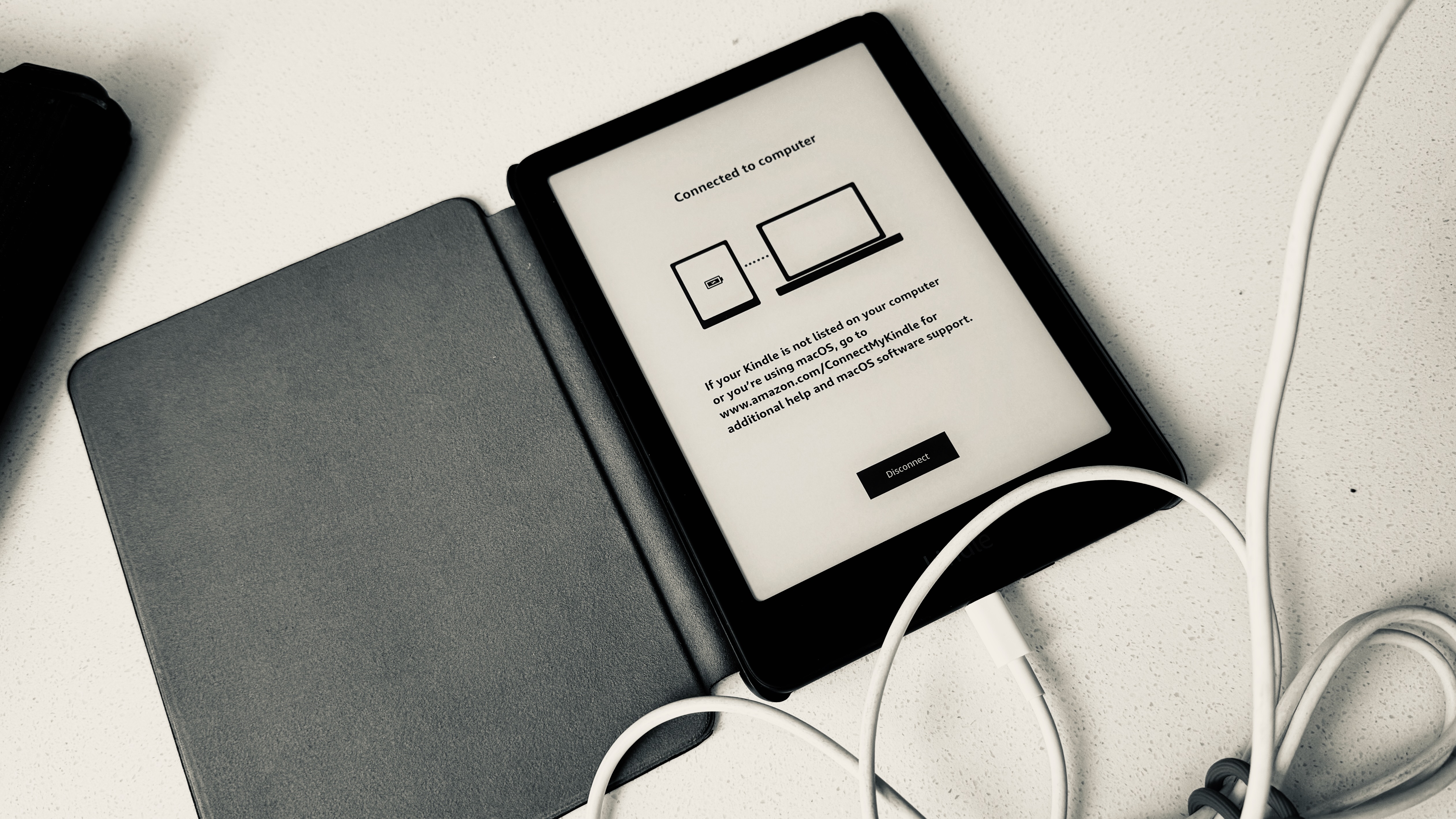
I had a vague goal to jailbreak my Kindle a while ago because, well, it seemed like it might be interesting. The problem was that I just couldn’t do it until recently.
I love reading on the device, but I also didn’t love that I could only get books on it through Amazon (I know I could send PDFs to it, and there were a few other options, but they all kind of sucked). Jailbreaking it seemed to be a great option to open things up. I originally tried to do this back in June, but my Kindle auto-updated to a version of firmware that couldn’t be cracked by an officially released jailbreak method, so I waited. And waited. And waited…
Finally, AdBreak was released last month by the modding community, and I jumped all over it!

🗒 Side note: If you are eager to learn more about jailbreaking and why it might be worth the effort, check out this post.
So, now I’ve successfully jailbroken my Kindle, and I’m enjoying it immensely (more on that below). However, the process of jailbreaking has been half the fun, so I don’t want to skip past that. Going through the steps to load special code and scripts and learning about the way this works and succeeding at the end feels awesome! Like, I’m hacking this thing and making it do crazy stuff. How cool is that!?!

If this doesn’t sound like it would be awesome to you, I get it. I just needed to nerd out a bit maybe. It’s totally fair to not want to bother. There are a surprising number of steps involved, and it certainly is a bit nerve-racking if you haven’t done it before, but the process is documented so well that you feel well looked after throughout. Make no mistake about it, though; it’s a project.

Just to give you an idea, though, here are all the steps I went through (all of which are on Kindle Modding):
- Kept my Kindle in airplane mode for a few months so it wouldn’t update past firmware 15.8.3. I only connected quickly occasionally to grab new library loans from Libby or books from the store. It seemed to be fine to connect it for short periods of time.
- Filled my Kindle storage up so that it wouldn’t auto-update when I connected it to Wi-Fi (loading “spacer” files onto the device via USB).
- Enabled ads temporarily on my device via Amazon.com (this is required for the AdBreak jailbreak to work, as the name implies).
- Installed the jailbreak files to jailbreak the device and prevent future updates (done via USB).
- Installed the app launcher (to launch a non-Amazon reading experience and other apps).
- Installed the KOReader which is an alternative eReader experience.
- Installed a dictionary (I’m using reader.dict).
- Installed Kindle Forge to add other features, like deactivating ads again, Game Boy emulator, and much more (you can also use it to install KOReader).
- Installed Calibre (on my laptop) so that I could organize my books and wirelessly sync books to KOReader.
- Downloaded a bunch of ebooks to my laptop, synced them to my Kindle, and…
Done! I’m reading new books.
Was it all worth it?
I’ve been living with it now for a few weeks, and I can say for sure it’s definitely improved my Kindle experience. At first, I was a little underwhelmed. But after some time learning how to use KOReader and Calibre and understanding that I could still get to my Kindle library and borrow books from the library, it’s nothing but upside now. When you see how many options KOReader has and how fast it is, it’s pretty satisfying.
Huge thanks to the Kindle Modding peeps that made this possible. I’ve donated a little bit because it’s remarkable that this is all provided by people for free. Also, thanks to Alex for getting me access to a great source for DRM-free eBooks. 😉


Comments welcome!